
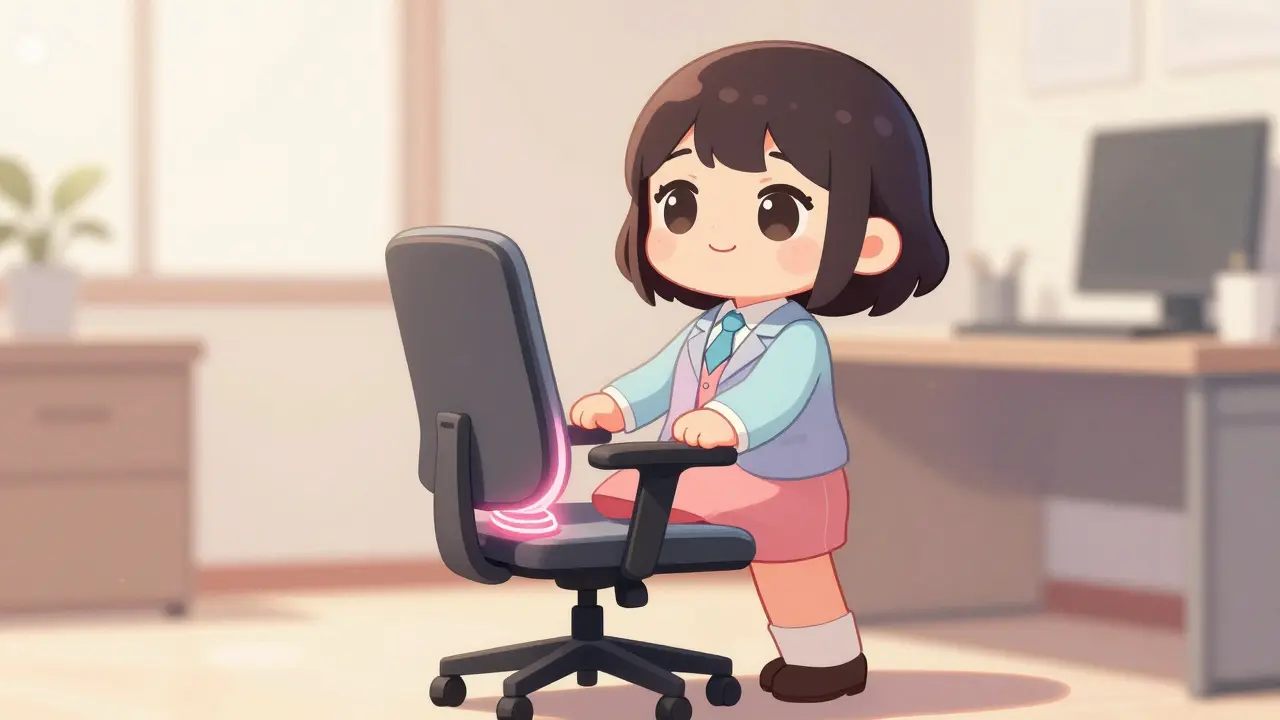
Your lower back is throbbing. Your wrists feel stiff after an hour of typing. You might blame it on getting older or working too hard, but the real culprit is likely sitting right in front of you: your workstation. Most of us treat our chairs and desks as static furniture, not realizing they are active tools that either protect our joints or slowly wear them down. The science is clear-how you sit and move matters just as much as what you do all day.
We often ignore small aches until they become chronic pain. But with the right ergonomic adjustments, you can significantly reduce stress on your spine, shoulders, and wrists. This isn't about buying the most expensive gear; it's about understanding how your body works and aligning your environment to support it. Let's look at how to build a workspace that keeps your joints healthy and your energy levels high.
The Science Behind Joint Pain at Work
It’s easy to think of ergonomics as a buzzword for fancy office chairs, but it is actually a rigorous scientific discipline. Originating from the Greek words for 'work' and 'law,' Ergonomics is the study of people's efficiency in their working environment, focusing on optimizing human well-being and system performance. It aims to fit the job to the person, rather than forcing the person to fit the job.
Why does this matter for your joints? Because poor posture creates uneven loads on your musculoskeletal system. When you slouch or reach too far, you strain muscles and compress joints. According to the Bureau of Labor Statistics, roughly 62% of office workers experience work-related musculoskeletal disorders (MSDs). That’s more than half of us dealing with pain directly linked to how we work. The National Institute for Occupational Safety and Health (NIOSH) estimates that these conditions cost millions of lost workdays annually. By addressing ergonomic hazards, we aren't just feeling better-we're preventing long-term damage.
Setting Up Your Chair for Spinal Support
Your chair is the foundation of your workstation. If your hips, knees, and ankles aren't aligned, everything else falls apart. Here is how to adjust it properly:
- Seat Height: Adjust your seat so your feet rest flat on the floor. Your thighs should be parallel to the ground. For most adults, this means a seat height between 16 and 21 inches from the floor. If your feet dangle, use a footrest to prevent pressure on the backs of your legs.
- Lumbar Support: This is crucial for your lower back. Look for a chair with adjustable lumbar support that fits into the natural curve of your spine, typically around the L3-L4 vertebrae level. Proper support here reduces strain on your spinal discs.
- Seat Depth: There should be a gap of about two to three fingers between the edge of the seat and the back of your knees. Too deep, and it cuts off circulation; too shallow, and your thighs lack support.
Don't underestimate the power of movement. Even the best chair can cause issues if you stay in one position for hours. The American Physical Therapy Association recommends taking microbreaks every 30 minutes. Just 30 to 60 seconds of standing, stretching, or walking can reduce static loading on your joints by nearly 30%. Set a timer if you have to.
Monitor Positioning to Save Your Neck
Neck pain is one of the most common complaints among desk workers, and it usually comes from looking up or down at your screen for too long. The goal is to keep your head in a neutral position, where your ears align with your shoulders.
Position your monitor about 20 to 30 inches away from your eyes-roughly an arm's length. The top of the screen should be at or slightly below eye level. This encourages a natural downward gaze angle of about 15 to 20 degrees. If your monitor is too high, you'll crane your neck forward, increasing the load on your cervical spine by up to 4.5 times its normal weight. If it's too low, you'll hunch over, straining your upper back.
If your laptop is your primary screen, don't type while looking down at it. Use a stand or prop it up on books, then connect an external keyboard and mouse. This simple change can drastically reduce neck and shoulder tension.
Keyboard and Mouse Setup for Wrist Health
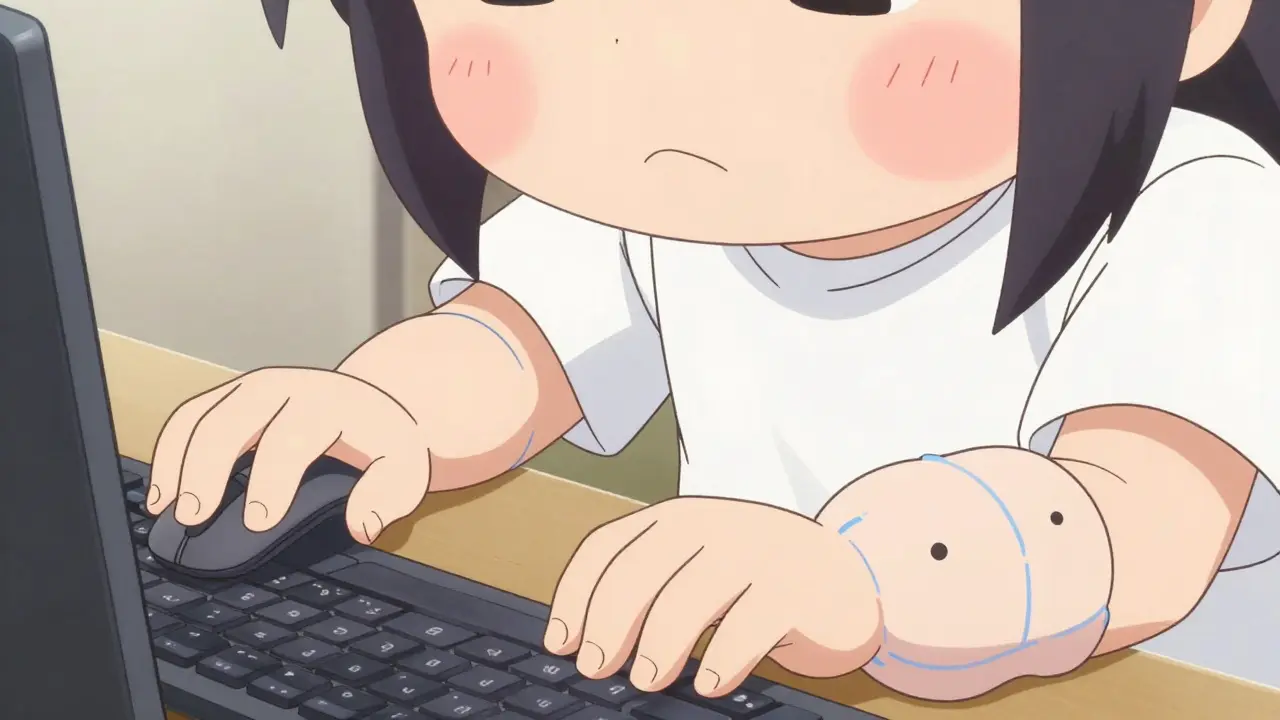
Your hands and wrists take a beating during the day. Repetitive strain injuries like carpal tunnel syndrome often stem from awkward wrist positions. Here is how to protect them:
- Elbow Angle: Keep your elbows close to your body and bent at a comfortable angle between 90 and 110 degrees. Your shoulders should be relaxed, not hunched up toward your ears.
- Wrist Position: Your wrists should be straight, not bent up, down, or to the side. A neutral wrist position reduces the risk of carpal tunnel syndrome by over 40% compared to extended or flexed positions.
- Keyboard Height: The keyboard should be low enough that your forearms are parallel to the floor. If your keyboard is too high, your wrists will bend upward, increasing pressure inside the carpal tunnel.
- Mouse Placement: Keep your mouse within 1 to 3 inches of the keyboard. Reaching for the mouse forces you to extend your arm, which strains your shoulder and rotator cuff. Consider using a vertical mouse to keep your forearm in a handshake position, which can further reduce strain.
If you find yourself constantly reaching for documents, use a document holder placed next to your monitor. This prevents you from twisting your neck back and forth repeatedly.
The Benefits of Sit-Stand Desks
Sitting for prolonged periods is often called "the new smoking" because of its negative health effects. While standing all day isn't the answer either, alternating between the two can be a game-changer for joint health.
A sit-stand desk allows you to shift your weight and engage different muscle groups throughout the day. Studies show that workers who use adjustable desks report a significant reduction in lower back pain compared to those stuck at fixed-height desks. The key is variety. Try the 20-8-2 rule: sit for 20 minutes, stand for 8 minutes, and move/stretch for 2 minutes. This rhythm helps maintain blood flow and prevents stiffness.
When transitioning to a standing position, ensure your monitor remains at eye level. You may need to raise your monitor arm or stack books under your laptop. Also, wear supportive shoes when standing to cushion your joints.

Budget-Friendly Ergonomic Upgrades
You don't need to spend thousands to improve your setup. Many effective changes cost very little or nothing at all. Here are some practical, low-cost solutions:
| Problem Area | Low-Cost Solution | Benefit |
|---|---|---|
| Feet Dangling | Use a sturdy box, stack of books, or a dedicated footrest | Improves circulation and reduces lower back strain |
| Monitor Too Low | Prop laptop on books or use a cardboard riser | Aligns screen with eye level, saving the neck |
| Poor Lumbar Support | Roll up a small towel and place it behind your lower back | Maintains natural spinal curve without buying a new chair |
| Wrist Strain | Use a soft gel wrist pad or a rolled-up cloth | Cushions wrists and encourages neutral positioning |
| Static Sitting | Set phone alarms for hourly movement breaks | Reduces stiffness and promotes blood flow |
These small tweaks can make a big difference. The goal is to create a setup that feels natural and supports your body's alignment. Start with these basics before investing in expensive equipment.
Troubleshooting Common Issues
Even with the best setup, you might still experience discomfort. Here is how to troubleshoot common problems:
- Shoulder Pain: If your shoulders hurt, check if your mouse is too far away. Bring it closer. Also, ensure your keyboard isn't too high, forcing you to shrug your shoulders to type.
- Lower Back Pain: Verify your lumbar support. If your chair lacks adjustment, try the towel trick. Also, check if your seat is too deep, pushing your back away from the support.
- Neck Stiffness: Raise your monitor. Even a few inches can make a huge difference. Avoid looking down at your phone for long periods; hold it at eye level instead.
- Wrist Numbness: Check your wrist position. Are you bending them up or down? Flatten them out. Consider a vertical mouse if standard mice continue to cause issues.
Remember, ergonomics is personal. What works for someone else might not work for you. Listen to your body and make small adjustments until you find your sweet spot.
How long does it take to feel relief from ergonomic changes?
Most people notice improvements within 6 to 8 weeks of consistent use. However, acute pain may take longer to subside. It's important to be patient and stick with the adjustments. If pain persists beyond a few months, consult a healthcare professional.
Is a standing desk better than a sitting desk?
Neither is inherently better. The best approach is variety. Alternating between sitting and standing reduces static load on your joints and improves circulation. Aim for a mix of both throughout the day.
Do I need an expensive ergonomic chair?
Not necessarily. While high-end chairs offer more adjustability, many budget-friendly options can provide adequate support if adjusted correctly. Focus on features like lumbar support and seat depth first. You can always add accessories like footrests or cushions later.
What is the ideal distance between my eyes and the monitor?
The ideal distance is about 20 to 30 inches, or an arm's length away. This reduces eye strain and ensures you don't have to lean forward to see the screen clearly.
How often should I take breaks?
Experts recommend taking a short break every 30 minutes. Stand up, stretch, or walk around for 30 to 60 seconds. This helps reset your posture and reduces stiffness.